
How can we help you?
Team sync
Team sync requires a Pro Subscription. Alternatively, teams can work cloud free.
Team sync is specifically designed to let teams easily share data. If you have different group responsibilities, you can limit projects to only people in those sub groups.
Mac/PC vs Mobile
On the desktop you can invite team members to projects and see time across the team.
On mobile, you can see and track your own time. If tracking against a shared project, your time will be visible to others in the desktop edition.
Inviting Team Members
Simply make a new project (New—> Project menu) or edit an existing project (Edit—>Projects menu). Then click Add Team Members. Enter in the email of the person you want to share with or select an existing shared project to share out to that same team. You can enter multiple emails at once. If they already have OfficeTime, the project will appear in their copy. If they don’t, they’ll be invited by email to create an account and download.
If you’ve already invited them before you can use the Select Team or Select Project menu to quickly add existing team members or copy the group from another project.
Unless the recipient already has a paid account, your account will be updated to add another team member and you’ll be billed for the remainder of the period for the new person. Should you later remove the team member, your billing account will be credited.
Permissions

If you untick “See Team’s Time”, the team member will only see his or her own time. He or she won’t be able to modify the team.
Otherwise, they’ll see all team members time for this project however they can hide others from their day to day timesheet by going to the OfficeTime preferences, general and choose the “Hide Other Team Members” option. The full team will still be visible in reports.
Untick “See Rates” to hide financial information from team members so that category rates are not shown, the project budget is hidden and the Client, if any, is hidden. They also won’t be able to change anyone else’s rate permissions.
If an edit is made to someone’s time, it will be updated for everyone.
Rates
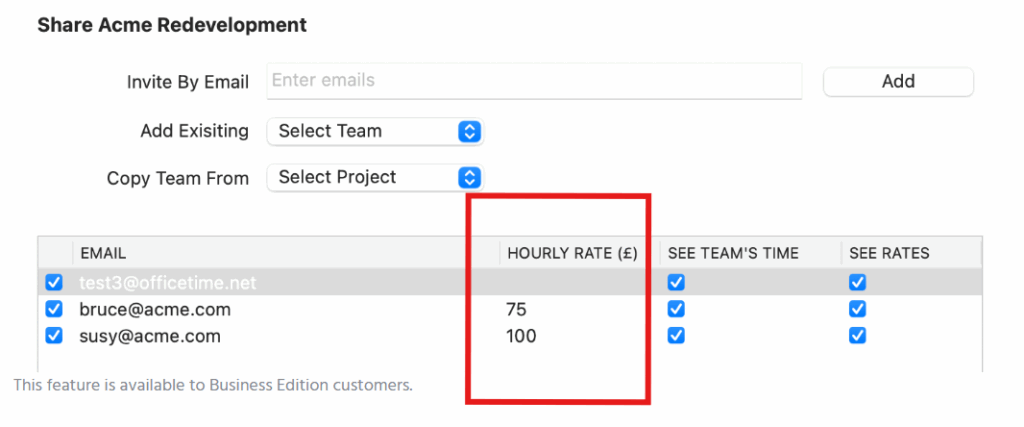
Optional: Enter an hourly rate for each person. Any time tracked in this project will use this hourly rate.
If you don’t enter a rate here, the rate from the category applied to a session will be used.
If you copy a team from another project, it pre-fills in the rates for you.
Sharing Categories
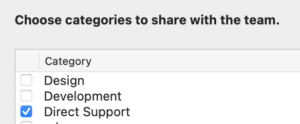
Any categories used now or later in the project will be automatically shared so normally you won’t need to do anything.
You may wish to share out extra categories by clicking the Share Categories button on the project sharing screen. It’s not needed to share categories already in use in this project.
Sharing Multiple Projects
You share out many projects to a team of people quickly.
Choose Edit->Projects menu and select some projects. Hold the Shift or Command (Mac) / Control (PC) key to select multiple projects. Don’t use the checkboxes on the left.
Be careful though. If you select projects assigned to different groups of people, all those people will be included and shared out to all selected projects.
Now click the Share button and share like normal.
Removing Team Members
You can easily remove people from projects by choosing Edit->Projects menu, editing a project, edit the team and uncheck the person.
To remove someone from your account so that you are no longer charged for their seat, email support@officetime.net. You’ll get a prorated credit for the their remaining time.
When removing, you can choose to keep or delete all their data from everyone’s copy.